Tutorial: create a SOAP Teststep with WSDL Service definition
This tutorial will create a SOAP Teststep to run a SOAP request based on a WSDL that can be downloaded from a web url. We will - create an Endpoint Service definition and download the WSDL - create the SOAP Teststep inside a new Repository
Create an Endpoint Service Definition
An Endpoint (reference) contains the webservice definition, technically. For A SOAP webservice this is the WSDL.
Short Overview of the task
- Switch to the endpoint view
- Create an endpoint and enter the endpoint-wsdl URL
- Download the WSDL definition
- View the endpoint definition
- Next steps
If you want to test a SOAP webservice, you need to import the WSDL. This has several reasons
- APIJockey TEST will read all types, operations, port types, messages and bindings provides these information in a searchable view.
- The creation of SOAP Teststep will require you to enter a specific operation. This is the base for the schema validation of your request.
Create an Endpoint (reference)
Switch to endpoint definition as shown here:

This view will be empty when you haven't yet imported a WSDL definition.
A new modal dialog comes up. Enter the following URL: http://webservices.oorsprong.org/websamples.countryinfo/CountryInfoService.wso?WSDL.
Add the following data:
- Enter the URL
- Tab to next textfield to see a default endpoint name
- Make sure the toggle start download after confirmation is enabled.
- Confirm the dialog with OK.

The Application will download the WSDL data and display a new entry unter Endpoints with the endpoint name you entered.
When you select an endpoint you will see the list of XSD files (type definitions) that are imported or included in the WSDL. You can select each of them, read them and search within them.

Once you have an Endpoint (reference), you will be able to create a SOAP Teststep. You have the option to create SOAP and HTTP-Teststeps without endpoint references; These teststeps will not support WSDL schema definitions and Run Environment settings.
We are ready to create the SOAP Teststep.
Create a Test definition hierarchy
APIJockey TEST is intended to host a large number of tests and while initial exploration tests are very common the hard works starts with keeping things organized.
When you work with a large number of webservices, with various releases, you will find it necessary to organize your tests in a structured, hierarchical way.
API-Jockey organizes tests in a hierarchy of - Repositories - Testsets - Testcases and - Teststeps.
Here, we will walk through the creation of such a Test definition hierarchy to get you started.
- A Repository
- A Testset
- A Testcase
Create a Repository
We will switch back to the Test definition view
Click on the button Create new Repository to create a new Repository. This will open a dialog where you must enter the name of the new Repository. We enter the name Enumerations

This will open a dialog where you must enter the name of the new Repository. We enter the name music store. Confirm with OK. You can rename the repository at any later point in time. You will get the following view:

Enter the name Country information and confirm with OK. You can rename the repository at any later point in time.
Create a Testset
Press the create new Testset Button. This opens a dialog where you enter the name exploration tests.

The testcase view shows the testcases associated with the currently selected testset, which is an empty list for now.
Create a Testcase
Press the create new Testcase Button. This opens a dialog where you enter the name eUnited Kingdom.

Create a SOAP Teststep
A SOAP teststep performs sends a SOAP/XML payload (Request) to a specified URL and waits for the SOAP/XML response payload Press create new SOAP Teststep. This will open a configuration dialog for the SOAP request. You need to enter some details:
- Teststep name
- SOAP binding (1.1 or 1.2)
- SOAP operation

Confirm with OK.

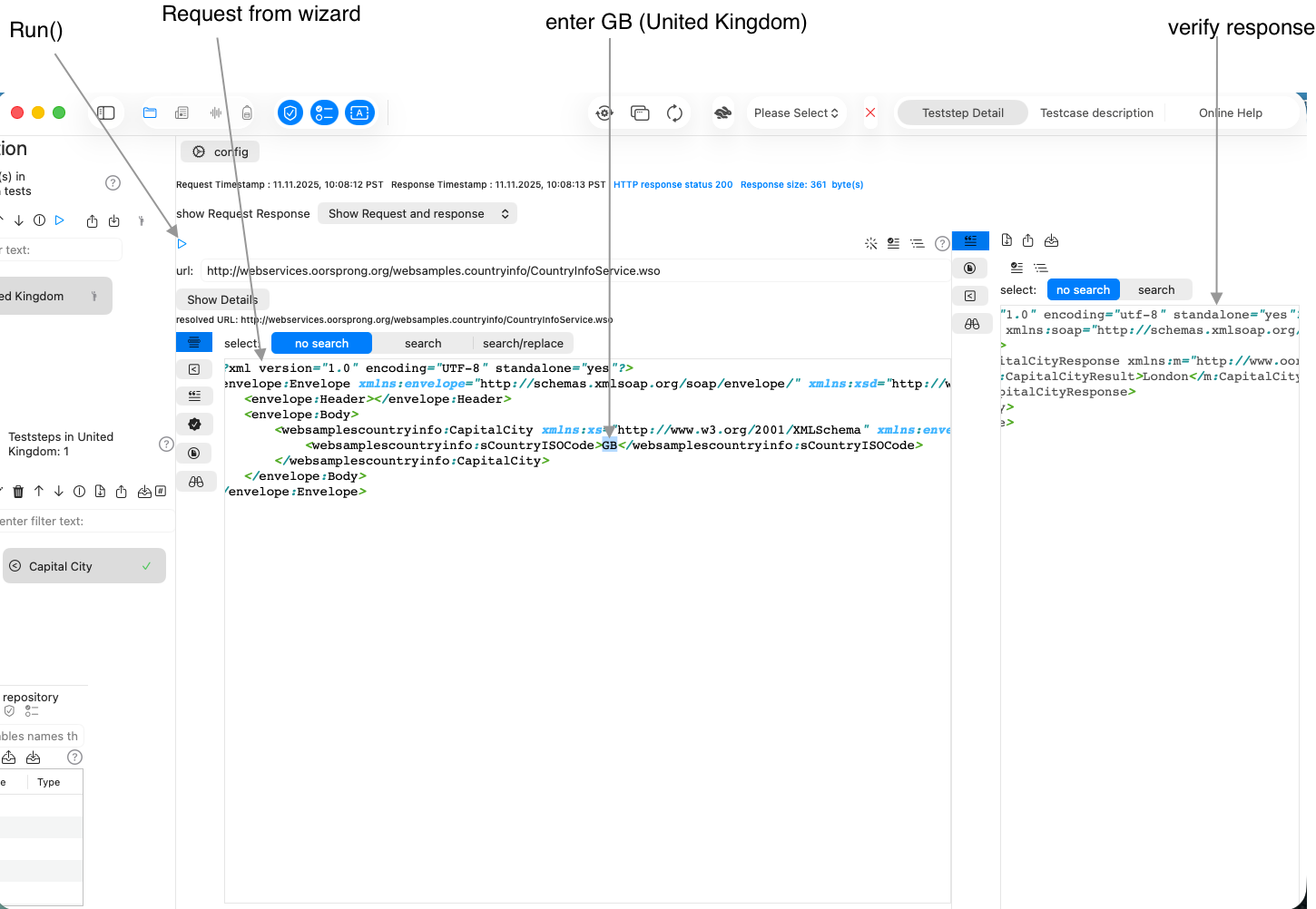
We close the sidebar to maximize the editor and press create new request from WSDL information. This will read the type information from the selected SOAP operation to help you get started.
What's left to do:
- enter GB in the element sCountryISOCode to provide the request parameter for United Kingdom
- press the Run() button
- review the response
Congratulations, you are done!